Native原生
Native and fast.原生,而且快。
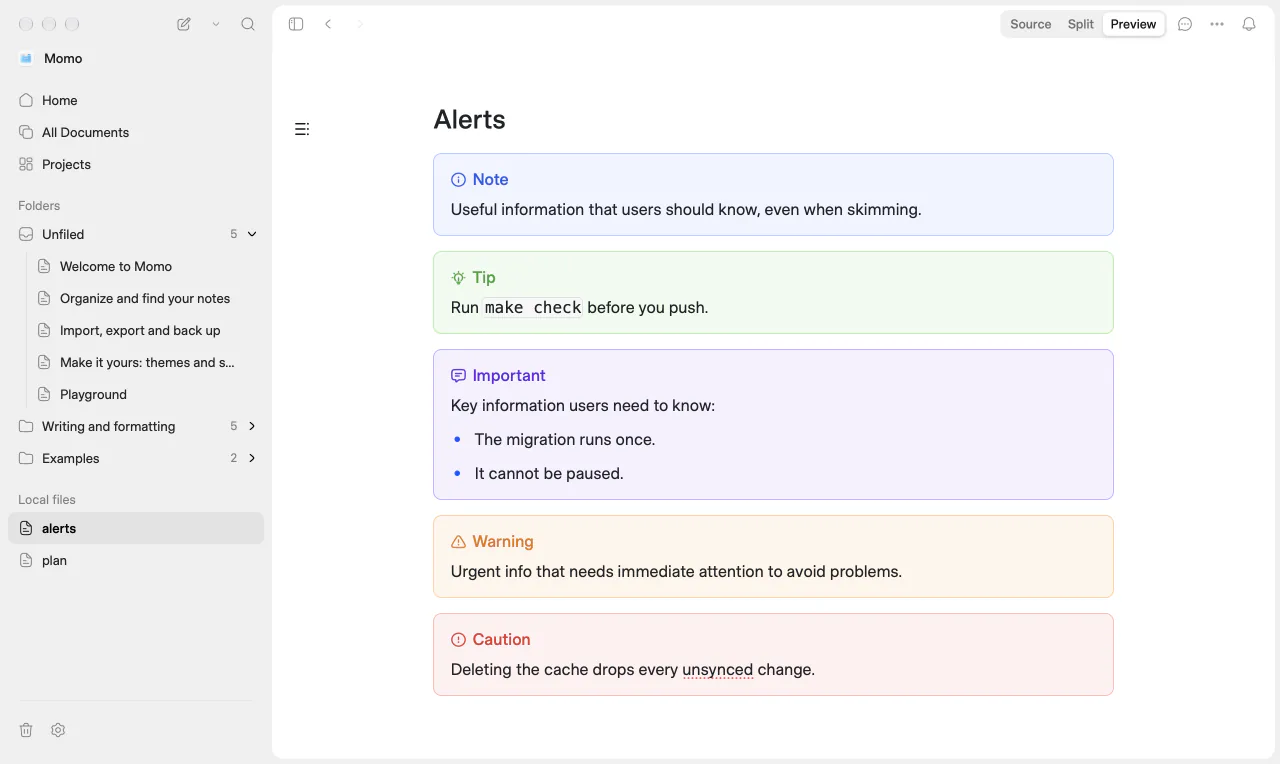
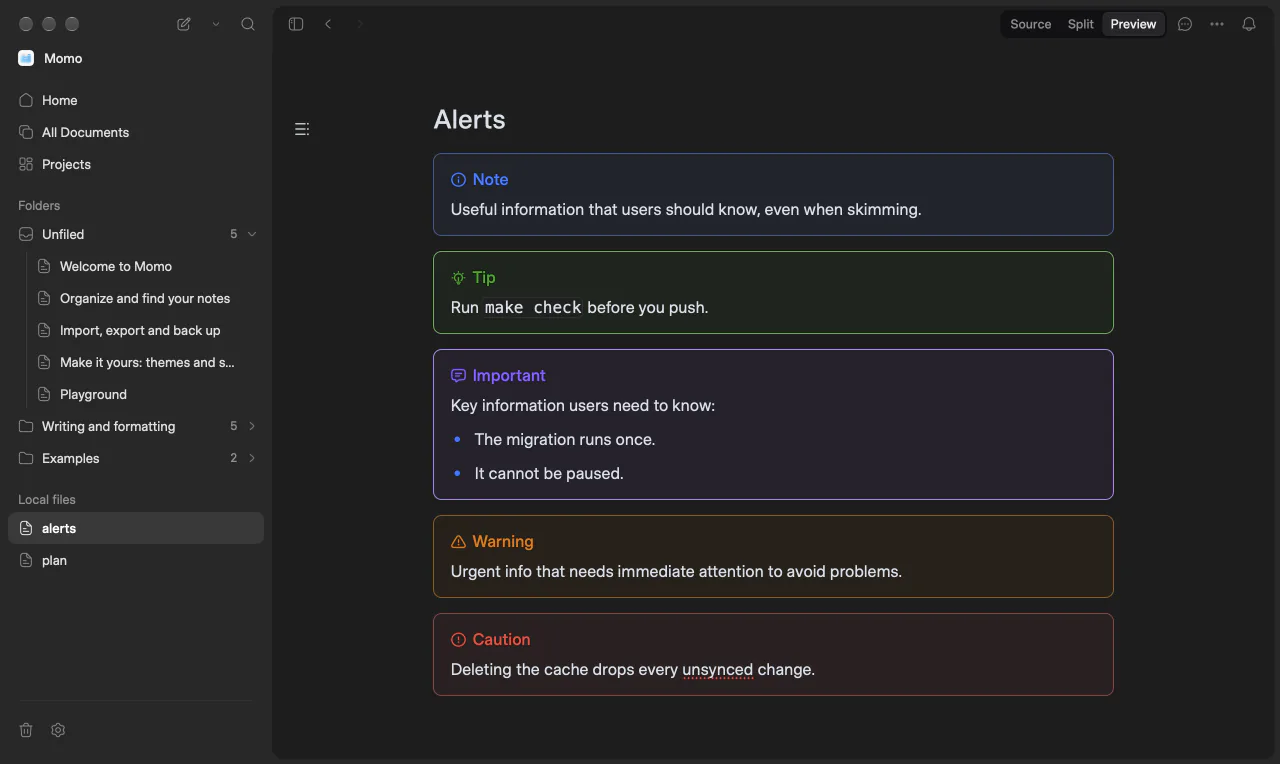
Momo is a real Mac app. Deep folder trees stay instant, and it follows your Mac between light and dark.
Momo 是一款地道的 Mac 应用。再深的文件夹树也是即点即开,浅色深色跟着你的 Mac 走。
 Momo
A native app for macOS原生 macOS 应用
Open the folder Claude Code, Codex or another AI tool writes in. Read it properly, comment on it, hand it back in one click, and see what changed.
打开 Claude Code、Codex 等 AI 工具正在写的文件夹:好好阅读,随手批注,一键交还,再看它改了什么。
Plays without sound. Turn it on from the controls.默认静音播放,可在控制条里打开声音。
The folder your AI writes in.AI 正在写的那个文件夹。
Rendered the way it was meant to look.按它该有的样子呈现。
Select any passage and say what should change.选中任意一段,说说哪里要改。
One click sends your comments to your AI.一键把批注发给你的 AI。
See what it changed. Confirm, or ask again.看它改了什么,确认,或者再改改。
Read阅读
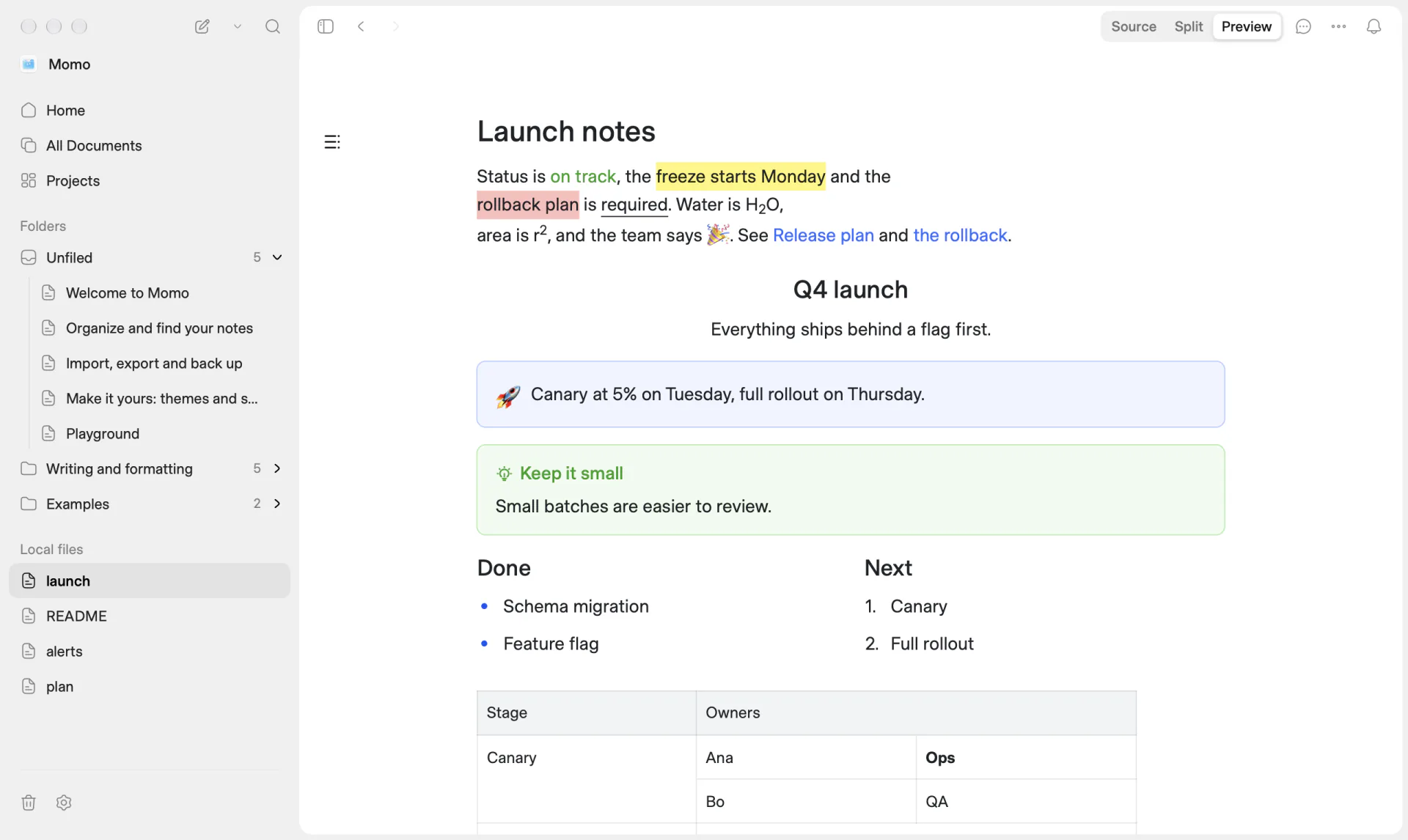
Your AI writes plans, specs and READMEs all day. Momo renders them properly: callouts and GitHub alerts, tables and columns, math, Mermaid diagrams, footnotes, and the HTML that READMEs lean on. Switch between Source, Split and Preview at any time.
你的 AI 整天都在写计划、规格和 README。Momo 把它们好好渲染出来:提示块与 GitHub 警示、表格与分栏、数学公式、Mermaid 图表、脚注,还有 README 里常见的 HTML。源码、分栏、预览,随时切换。
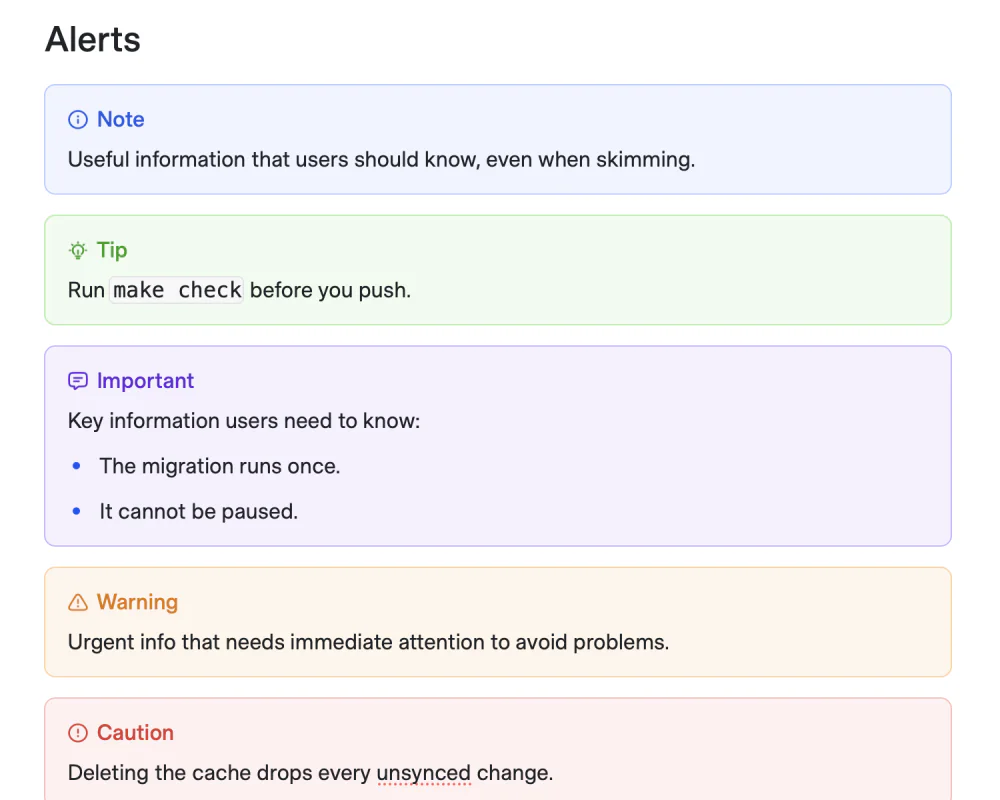
GitHub-style Note, Tip, Important, Warning and Caution.GitHub 风格的 Note、Tip、Important、Warning、Caution。
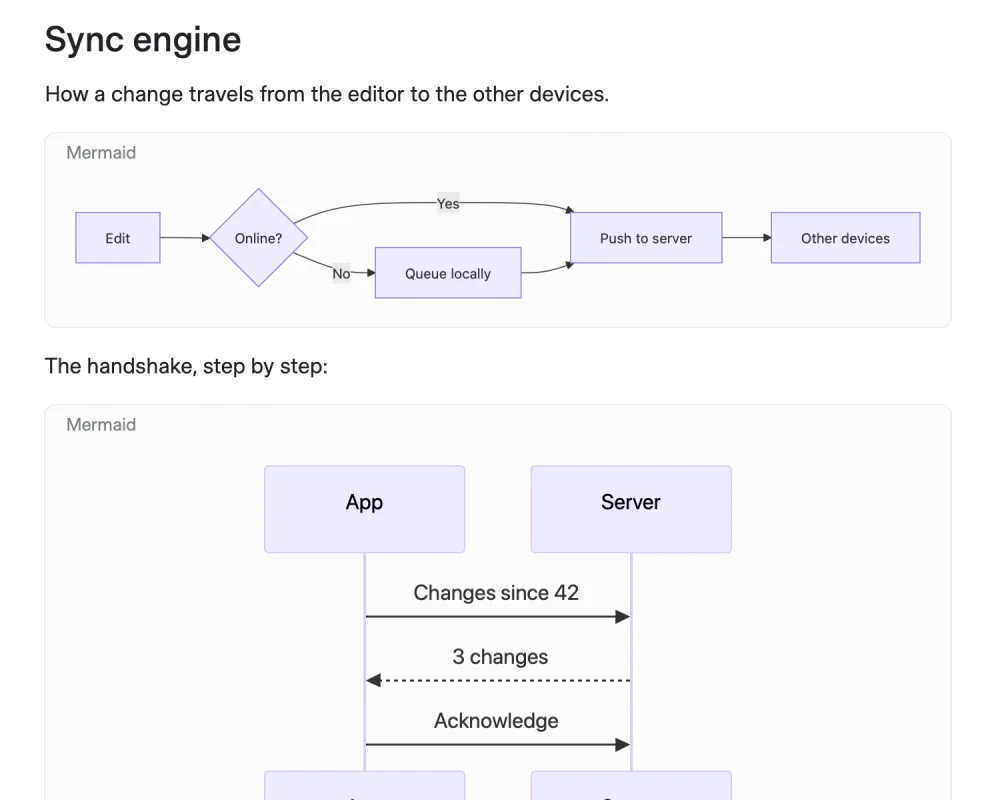
Flowcharts and sequence diagrams, drawn in place.流程图、时序图,就地画出来。
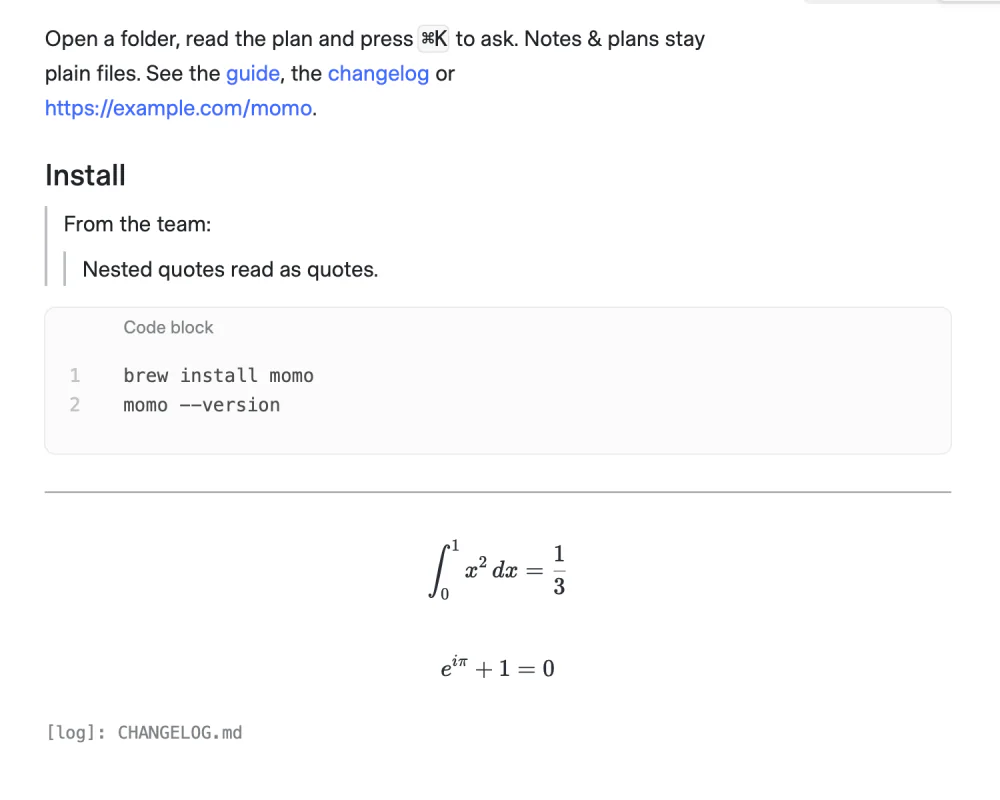
Equations are typeset. Code blocks keep their line numbers.公式排好版,代码块带行号。
Comment and hand back批注与交还
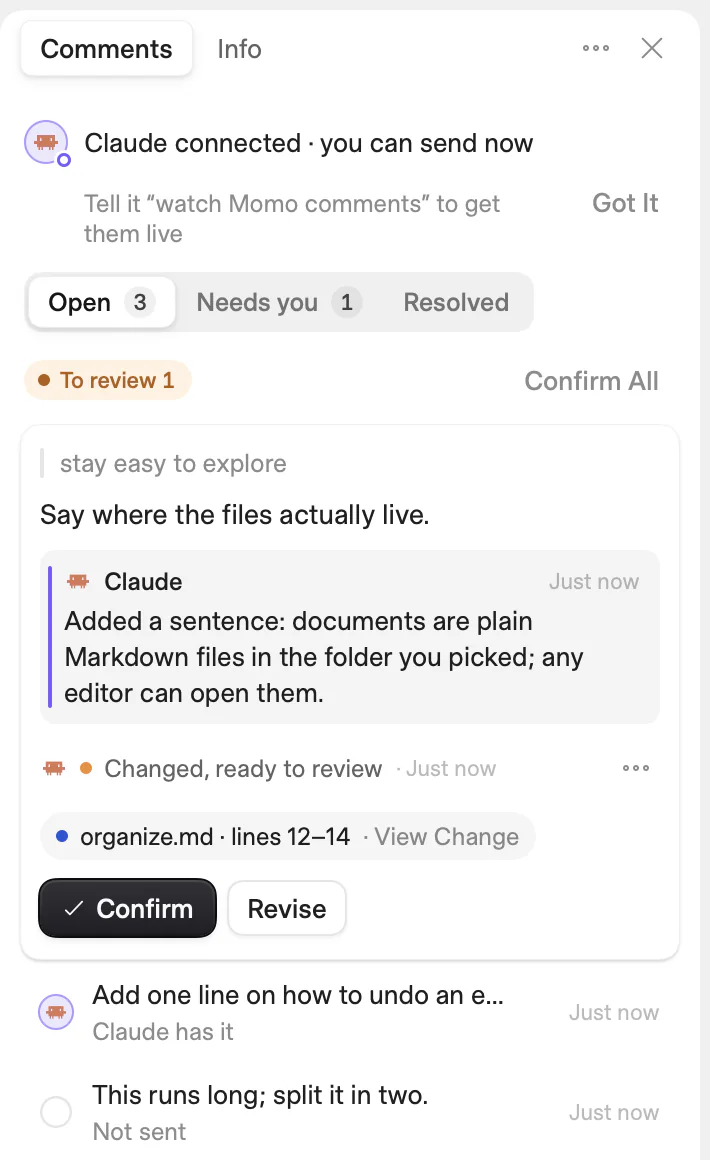
Select a passage and press ⌥⌘M to say what should change. One click hands your comments to your AI. While it works you can watch where it is in the file, and when it is done you review the change.
选中一段,按 ⌥⌘M 写下要改的地方。一键把批注交给你的 AI。它改的时候,你能看到它改到了哪里;改完之后,由你来确认。
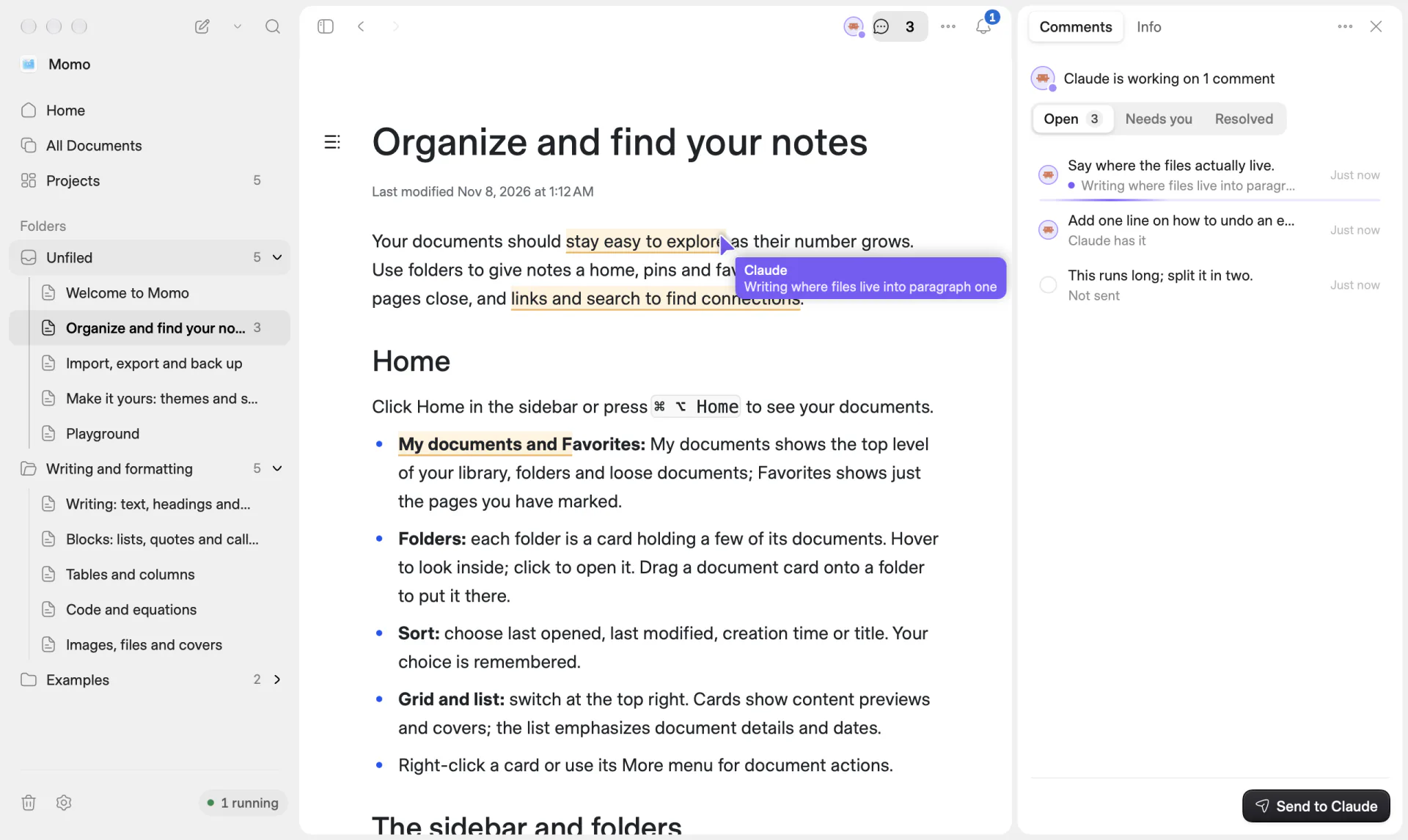
Your comments collect in the panel, each tied to the text it is about.批注收在右侧面板里,每一条都对应着原文。
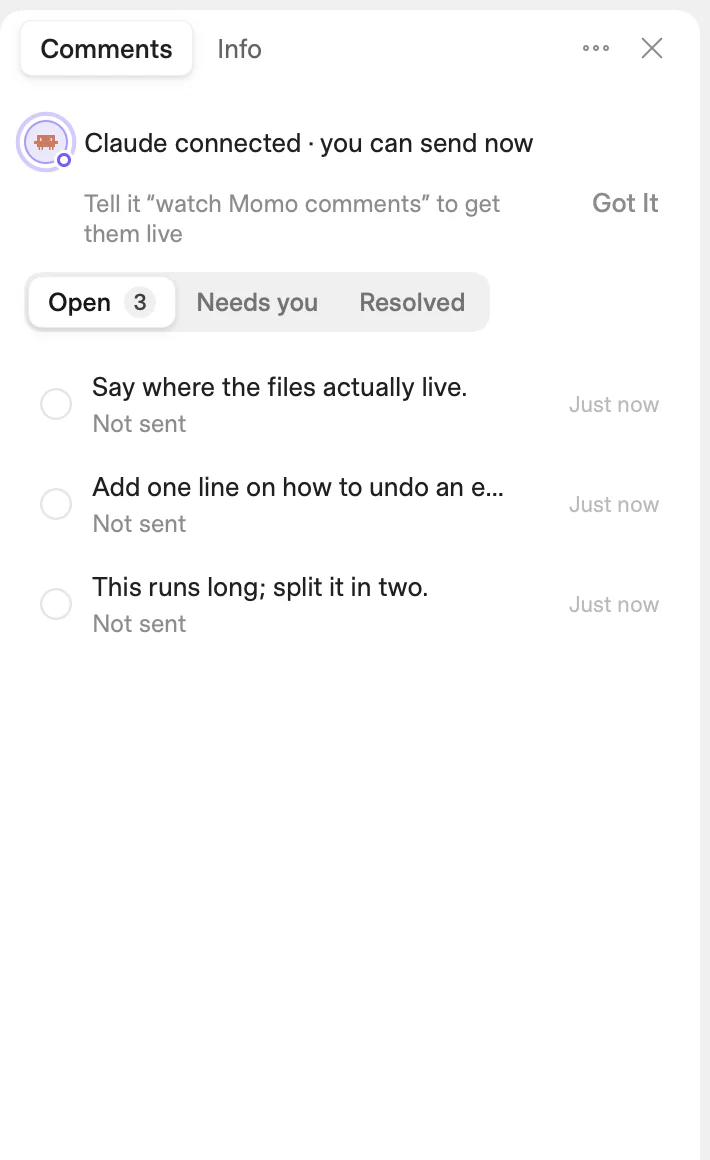
Send, and your AI picks the comments up. Its reply appears as it writes.点发送,AI 就接手这些批注;它的回复边写边出现。
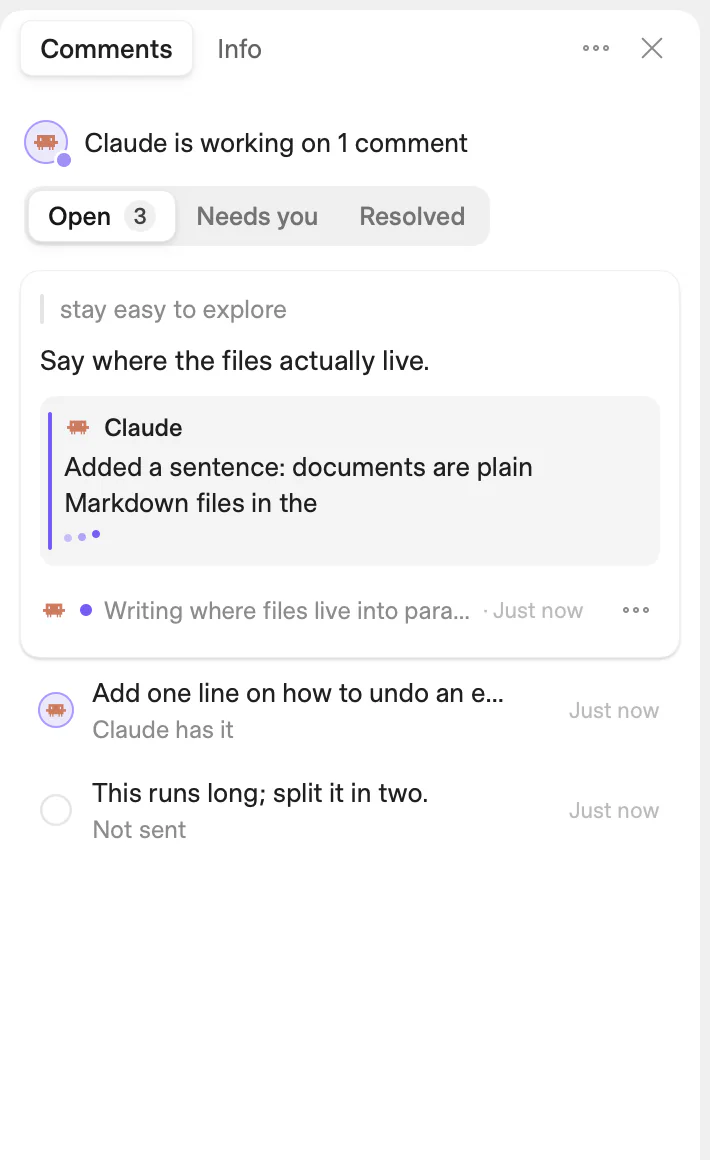
View the change it made, then Confirm it or ask for a revision.查看它的改动,然后确认解决,或者让它再改改。
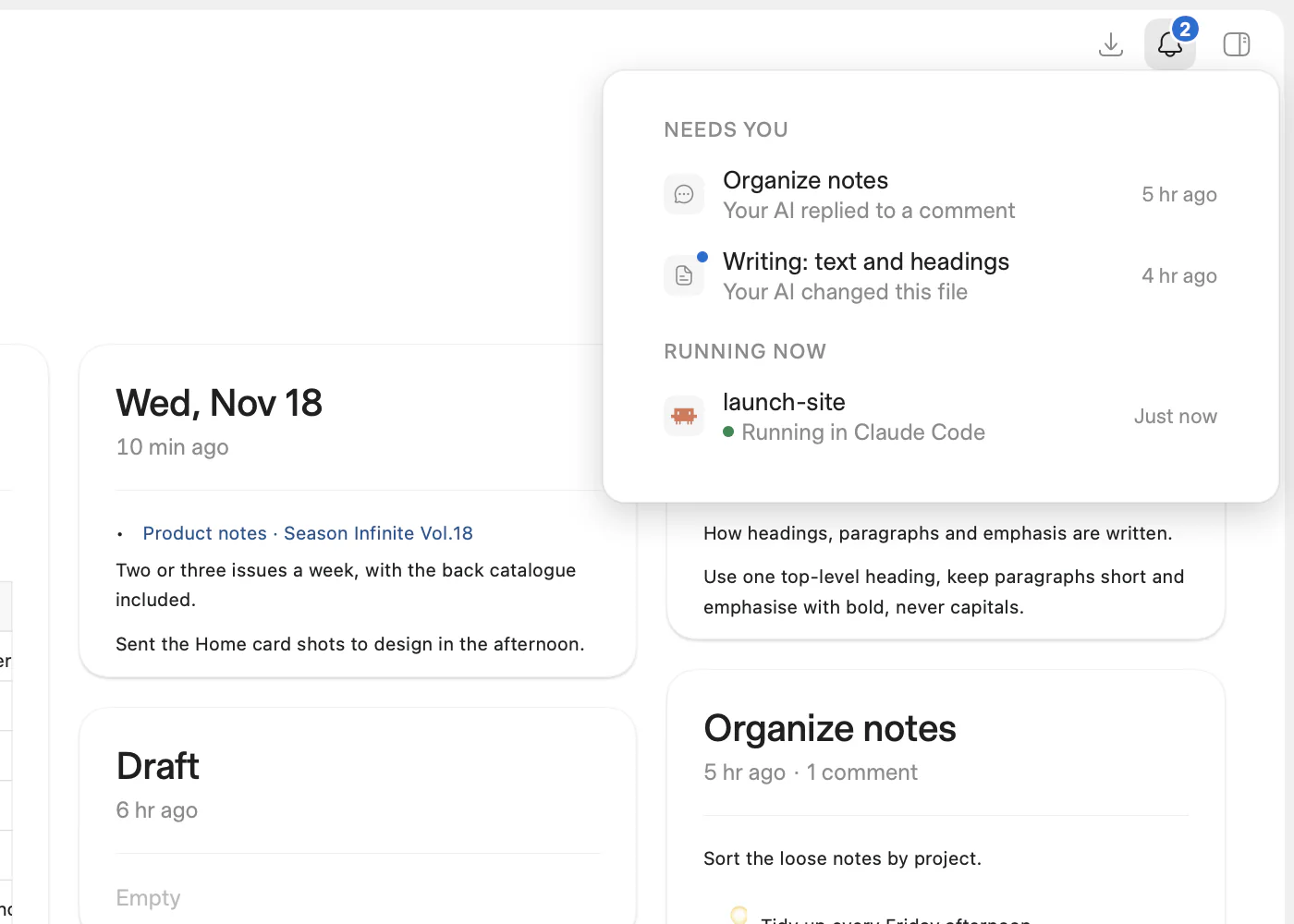
Stay in the loop随时知情
The bell gathers what is waiting on you and what is still running, so you never have to go looking.
铃铛里收着等你处理的事和还在运行的会话,不用自己到处找。
AI ProjectsAI 项目
Momo finds the folders your AI coding tools have worked in and lays them out by when they were last active, with the tools that worked there and the tokens they used.
Momo 会找出 AI 编程工具工作过的文件夹,按最近活跃的时间排好,并标出用过哪些工具、花了多少 token。
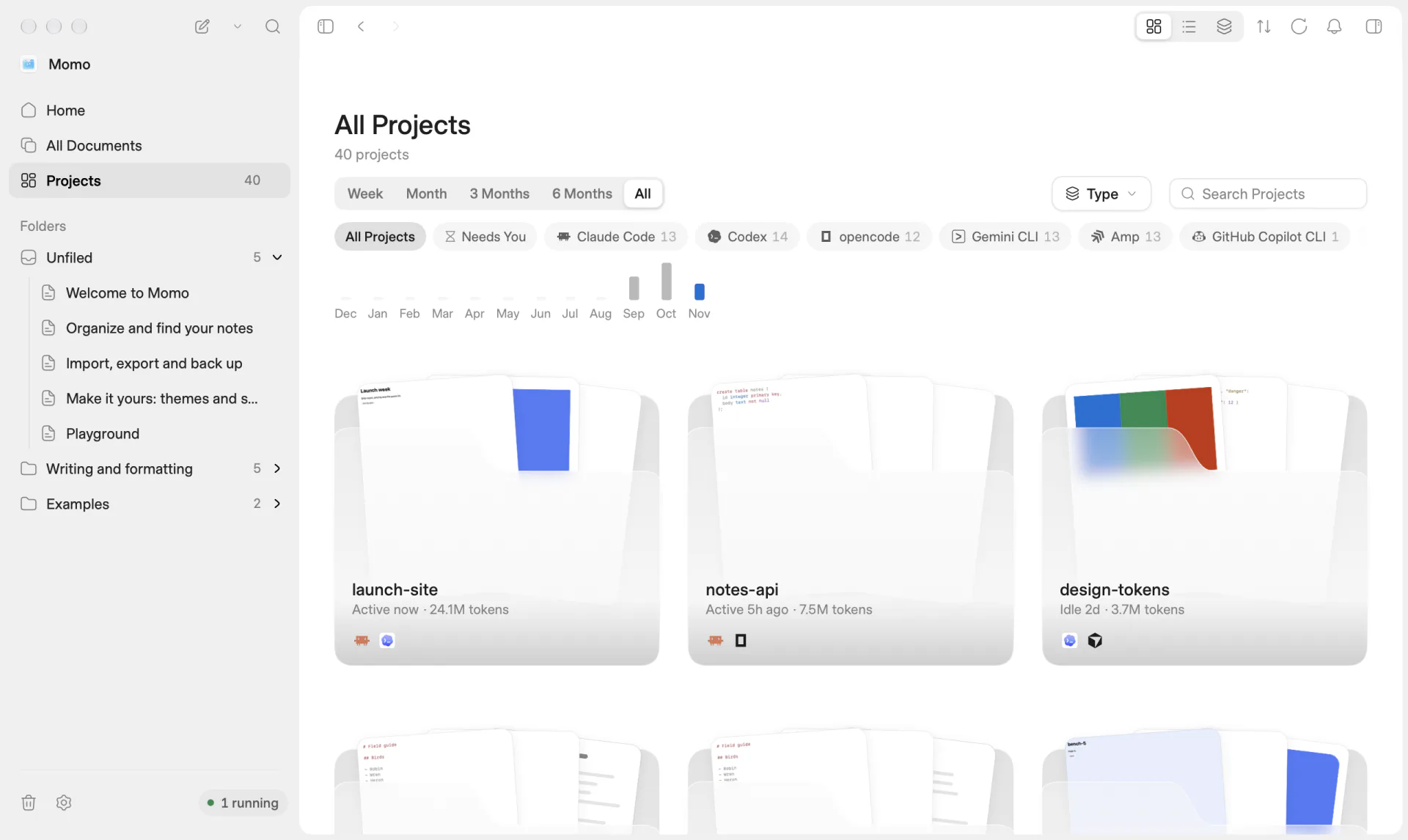
Select a project to see what is inside and which tools worked on it. Continue returns you to the session in the tool that ran it.
选中一个项目,看看里面有什么、哪些工具参与过。点「继续」,回到当初那个工具里的会话。
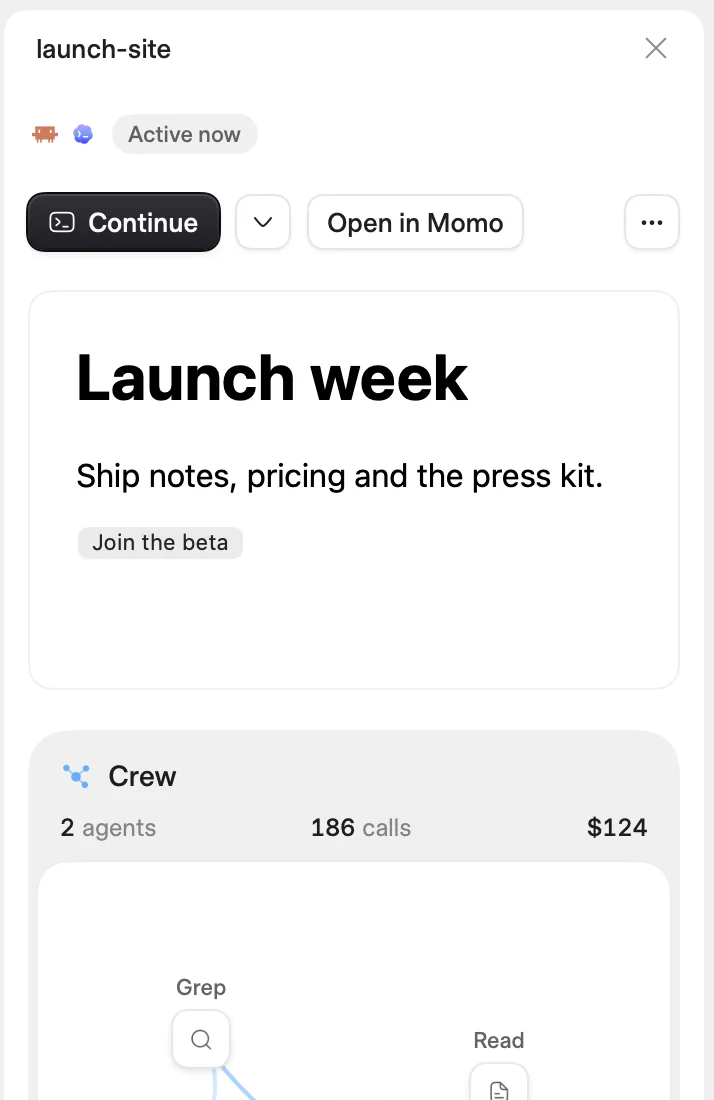
Momo recognises projects from each of these.这些工具做过的项目,Momo 都认得。
Home主页
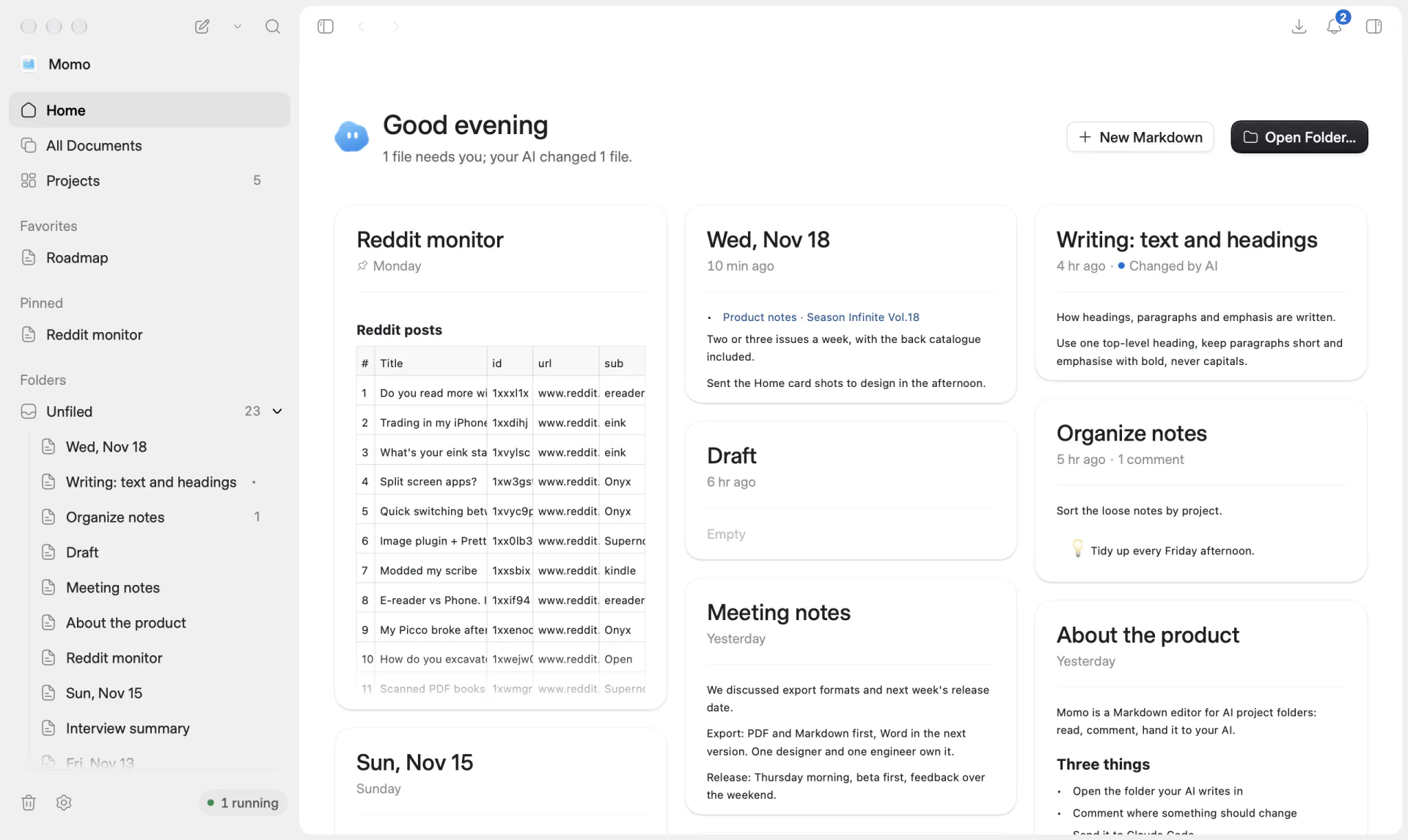
Home lays your documents out as cards that show what is actually inside: the table, the list, the first lines. A line at the top tells you what needs you and what your AI changed.
主页把文档铺成一张张卡片,卡片上就是真实的内容:表格、列表、开头几行。顶上一行字告诉你,哪些等你处理,AI 又改了什么。
Native原生
Momo is a real Mac app. Deep folder trees stay instant, and it follows your Mac between light and dark.
Momo 是一款地道的 Mac 应用。再深的文件夹树也是即点即开,浅色深色跟着你的 Mac 走。
Private隐私
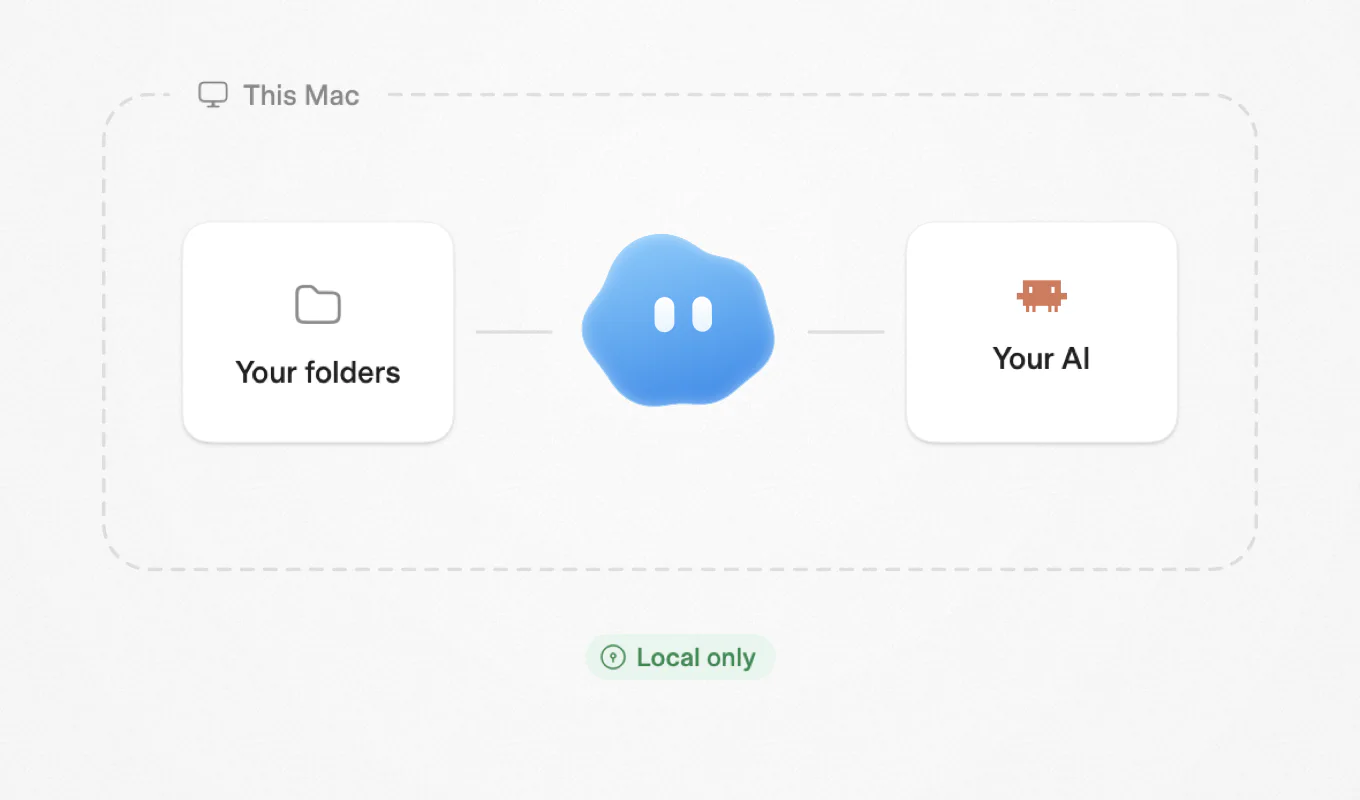
Momo opens files where they already live, in the folders you choose. Nothing is copied elsewhere and nothing is uploaded. No account.
Momo 就在文件原本的位置打开它们,在你选的文件夹里。不复制到别处,不上传,也不需要账号。

The Markdown editor for AI project folders.
为 AI 项目文件夹而生的 Markdown 编辑器。